5 Custom Security Rules in CloudFlare to SafeGuard WordPress and WooCommerce Store
In today’s online world, there are many threats to your WordPress and WooCommerce stores. It is very important to implement security rules in Cloudflare to protect your website. DDoS attacks have increased significantly, reaching new highs in 2026. These attacks can harm your business and cause customers to lose trust.
Additionally, issues like outdated software and SQL injection attacks remain prevalent. To effectively combat these problems, Cloudflare provides specialized solutions that enhance your website’s security. By utilizing these security rule Cloudflare tools, you can offer your customers a better shopping experience.
Key Takeaways
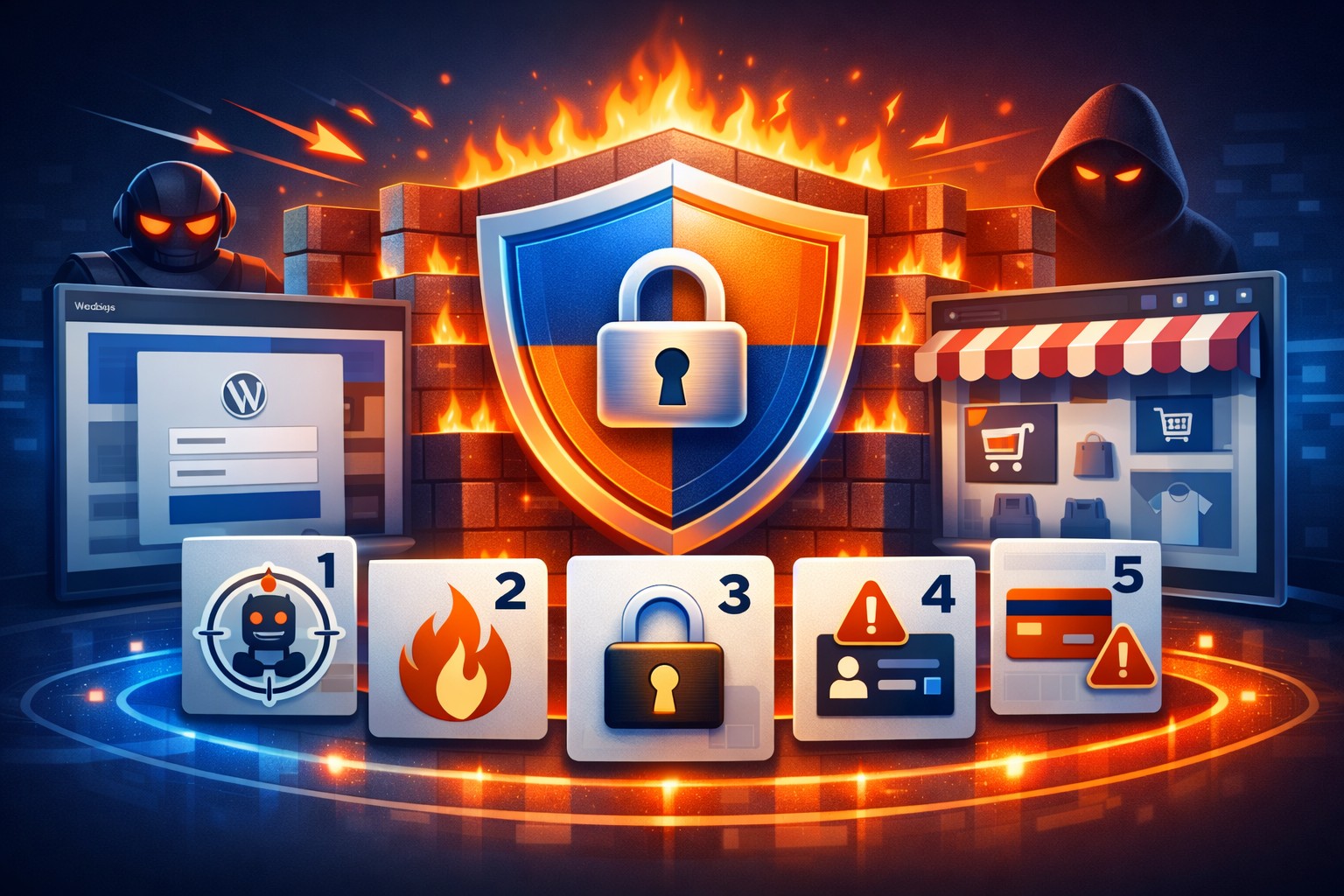
Block XML-RPC. This stops unauthorized access. It also helps reduce DDoS attacks on your WordPress site.
Add a challenge on your WordPress login page. This protects against brute-force attacks. It makes sure only real users can log in.
Secure the /wp-admin area with a challenge rule. This limits access. It protects sensitive parts of your site from unauthorized users.
Block access to important files like wp-config.php. This stops attackers from using weaknesses in your WordPress site.
Think about skipping the WooCommerce checkout rule during busy times. This improves user experience while keeping security.
Where to Create Custom WAF Rules
Log in to Cloudflare.
Select your domain.
Go to Security → Security rules (same feature as the older Security → WAF → Custom rules path).
Click Create rule → Custom rule (or New custom rule).
Set When incoming requests match to Custom filter expression.
For each rule you can either:
Fill the Field / Operator / Value dropdowns (easiest), or
Click Edit expression and paste the expression.
Then choose the Action and Deploy.
Tip: Put the Skip WooCommerce rule first (only if you need it), then Block and Challenge rules.
Rule 1 — Block XML-RPC

Purpose of Blocking XML-RPC
Blocking XML-RPC is very important for your WordPress security. XML-RPC lets remote apps send commands to your WordPress site. This can lead to unauthorized access and other security problems. Here are some risks with XML-RPC:
It is a target for brute force attacks. Attackers can guess passwords easily.
DDoS attacks can happen through XML-RPC. This can flood your server with too much traffic.
Attackers can use XML-RPC to take control of your site.
It is best to disable XML-RPC unless you need it for mobile apps or certain plugins. By blocking xmlrpc.php, you lower the chance of these attacks.
Implementation Steps
xmlrpc.php is one of the most abused WordPress endpoints. Attackers use it for brute-force logins and amplification attacks.
Rule name: Block XML-RPC
When incoming requests match: Custom filter expression
Field | Operator | Value |
|---|---|---|
URI Path | equals |
|
Action: Block
Optional — Edit expression instead:
(http.request.uri.path eq "/xmlrpc.php")When to skip this rule: Only if you need XML-RPC for Jetpack remote publishing or a similar tool. Most stores can safely block it.
Rule 2 — Challenge WordPress Login
Securing Login Pages
It is very important to secure your WordPress login page. This area often gets attacked by brute-force methods. Attackers try different ways to get in without permission. Here are two common brute-force attack types:
Traditional brute force: Attackers guess many passwords for one username. They often target ‘admin’ with thousands of guesses.
Credential stuffing: This method uses username-password pairs from past data leaks. It takes advantage of people using the same password for many accounts.
By adding a challenge to your login page, you can lower the chance of these attacks. CloudFlare’s challenge feature helps block bad traffic. It lets real users access your site safely.
Setup Process
Rule name: Challenge WP Login
When incoming requests match: Custom filter expression
Field | Operator | Value |
|---|---|---|
URI Path | equals |
|
Action: Managed Challenge
This slows down password-guessing bots on wp-login.php. Real browsers usually pass a Managed Challenge. Bots often fail.
Optional — Edit expression instead:
(http.request.uri.path eq "/wp-login.php")Optional stronger version (only allow your office or home IP) — use And with a second row:
Field | Operator | Value |
|---|---|---|
URI Path | equals |
|
IP Source Address | is not in |
|
Or paste:
(http.request.uri.path eq "/wp-login.php"
  and not ip.src in {203.0.113.10/32})
Replace 203.0.113.10/32 with your real public IP. If your home IP changes often, stick with Managed Challenge instead of a hard allowlist.
Rule 3 — Challenge /wp-admin
Protecting Admin Area
The /wp-admin area is often attacked on WordPress sites. It is very important to protect this part of your site. Here are some reasons why attackers like the admin area:
Using the default “admin” username
No login rate limiting or brute-force protection
Not using HTTPS for your website
Not checking for malware
Old user accounts still have access
No real-time security checks
Many business owners think that just installing WordPress and a security plugin is enough. This idea leaves many weaknesses open, making the /wp-admin area a big target for attacks. To make your WordPress safer, you need to take steps to protect this important area.
Implementation Guide
Rule name: Challenge WP Admin
When incoming requests match: Custom filter expression
Use two conditions joined with And:
# | Field | Operator | Value |
|---|---|---|---|
1 | URI Path | contains |
|
2 | URI Path | does not equal |
|
Action: Managed Challenge
Your dashboard needs protection. At the same time, WordPress and WooCommerce use /wp-admin/admin-ajax.php for front-end actions like cart updates and search suggestions. Blocking that path breaks the store.
Optional — Edit expression instead:
(http.request.uri.path contains "/wp-admin"
  and not http.request.uri.path eq "/wp-admin/admin-ajax.php")
Stronger version with trusted IPs — add another And row, or paste:
(http.request.uri.path contains "/wp-admin"
  and not http.request.uri.path eq "/wp-admin/admin-ajax.php"
  and not ip.src in {203.0.113.10/32 198.51.100.0/28})
Add every trusted admin IP or VPN range. Keep admin-ajax.php excluded.
By using this challenge rule, you can greatly lower unauthorized access attempts to your admin area. This step is very important for securing WordPress and making sure only real users can access sensitive parts of your site.
Rule 4 — Block Scanners and Sensitive Files
Understanding Threats
Scanners can be a big problem for your WordPress site. These tools look for weak spots that attackers can use. Some common scanners are:
WPScan: This tool finds known problems in WordPress versions, plugins, and themes.
OpenVAS: A well-known open-source scanner that finds security issues.
Nikto: Another open-source scanner that checks for different vulnerabilities.
Attackers often search for sensitive files on your site. They usually look for important files like wp-config.php and .env. These files hold key information, such as database passwords and secret keys. Attackers might use Local File Inclusion (LFI) and Remote File Inclusion (RFI) attacks to break into your system. It is very important to protect these files to keep your site safe.
Creating the Block Rule
Many exploit tools announce themselves in the User-Agent header. You can also block direct probes for sensitive files.
Rule name: Block Scanners and Sensitive Paths
When incoming requests match: Custom filter expression
Easiest method: click Edit expression and paste:
(http.user_agent matches "(?i)(wpscan|sqlmap|nikto|nuclei|masscan)")
or (http.request.uri.path matches "(?i)(wp-config.php|.env|.git)")
Dropdown method (simpler, slightly less complete) — join rows with Or:
# | Field | Operator | Value |
|---|---|---|---|
1 | User Agent | contains |
|
2 | User Agent | contains |
|
3 | User Agent | contains |
|
4 | URI Path | contains |
|
5 | URI Path | contains |
|
6 | URI Path | contains |
|
Action: Block
Tip: Start this rule in Log mode for 24–48 hours. Check Security → Events. If only junk traffic matches, switch to Block.
By using this security rule in CloudFlare, you can protect your WordPress site from scanners and stop unauthorized access to sensitive files. This helps improve your overall security.
Rule 5 — Skip WooCommerce Checkout
When to Use This Rule
You might need to skip the WooCommerce checkout rule in certain situations. This rule is important when the checkout process gets tricky or when users have problems paying. Here are some times when this rule is needed:
High Traffic: During sales or special events, your site may get a lot of visitors. Skipping the rule can help keep the checkout smooth.
Payment Failures: If users say their payments fail because of security checks, this rule can make things easier.
User Experience: A simpler checkout process makes it better for users by cutting down steps. This helps prevent drop-offs. Complicated pages can confuse users and hurt their trust.
Setup Instructions
Sometimes Cloudflare Managed Rules or Bot Fight Mode block legitimate checkout or payment callbacks. Customers see 403 errors, blank checkout pages, or failed payments.
Use this rule only if checkout is broken. Do not skip security for the whole site.
Rule name: Skip Woo Checkout (If Needed)
When incoming requests match: Custom filter expression
Use four conditions joined with Or:
# | Field | Operator | Value |
|---|---|---|---|
1 | URI Path | contains |
|
2 | URI Path | contains |
|
3 | URI Query String | contains |
|
4 | URI Path | contains |
|
Action: Skip
Skip options: Managed Rules (and Bot Fight Mode if that is the culprit)
Place at: First
Optional — Edit expression instead:
(http.request.uri.path contains "/checkout")
or (http.request.uri.path contains "/cart")
or (http.request.uri.query contains "wc-ajax=")
or (http.request.uri.path contains "/wc-api/")
Place this rule above the block/challenge rules if you need it.
By following these steps, you can keep your WooCommerce checkout working well and easy to use. However, it is important to balance security with user experience. Using SSL encryption keeps sensitive information safe during transfer, stopping unauthorized access.
Aspect | Description |
|---|---|
Data security | SSL encryption keeps sensitive information safe during transfer, stopping unauthorized access. |
Customer trust | The padlock icon and HTTPS in the URL boost customer confidence in the site’s security. |
PCI compliance | SSL is key for meeting PCI DSS rules, ensuring safe handling of credit card information. |
By skipping the WooCommerce checkout rule when needed, you can improve user experience while keeping transactions secure.
What Not to Block for WooCommerce
Avoid these mistakes. They break stores fast.
Do not do this | Why it breaks the store |
|---|---|
Block all of | Breaks |
Cache | Can show one user’s cart to another user |
Challenge every POST site-wide | Breaks checkout, coupons, and payment gateways |
Skip Managed Rules for the whole domain | Removes protection everywhere |
Leave Rocket Loader on without testing | Can break theme/checkout JavaScript |
Using custom security rules in CloudFlare greatly boosts the safety of your WordPress and WooCommerce stores. These rules help block different online dangers, like brute-force attacks and DDoS attempts. You can see clear benefits, such as:
Better protection made for your site’s needs.
Improved performance when traffic is high because of better caching.
Meeting industry security standards.
By using these rules, you protect your site and make it easier for users. Act now to make your site’s defenses stronger and create a safe shopping space for your customers.
Recommended Rule Order
Use this order in Custom rules:
Skip WooCommerce checkout (only if payments break)
Block XML-RPC
Challenge WP login
Challenge WP admin (except
admin-ajax.php)Block scanners and sensitive files
If you also use Cloudflare Managed Rulesets (Pro plan and above), enable rules tagged wordpress. That adds another layer against common WordPress exploits.
FAQ
What is Cloudflare?
Cloudflare is a service that makes websites safer and faster. It protects against online dangers, like DDoS attacks, and helps pages load quicker by storing copies.
How does the Cloudflare firewall work?
The Cloudflare firewall keeps your website safe by checking incoming traffic. It stops harmful requests and lets real users access your site, making browsing safer.
Why should I block XML-RPC?
Blocking XML-RPC lowers the chance of brute-force attacks and DDoS attacks on your WordPress site. It stops unauthorized access and makes security better.
How can I challenge login attempts?
You can challenge login attempts by creating a firewall rule in Cloudflare. This rule asks users to confirm who they are, which helps stop unauthorized access.
What are sensitive files in WordPress?
Sensitive files in WordPress are things like wp-config.php, .env, and others that hold important information. Protecting these files is key to stopping unauthorized access and data leaks.